
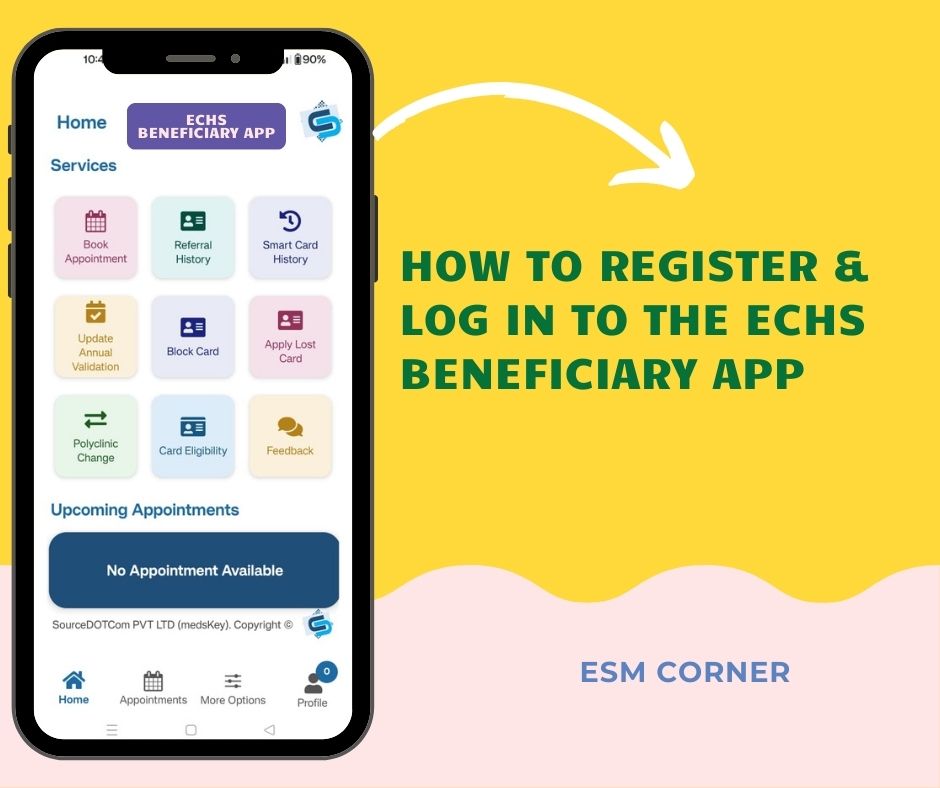
Healthcare is one of the most important needs after retirement. To make medical services more accessible, the government has introduced the ECHS Beneficiary Mobile App. This app is specially designed for ex-servicemen and their dependents to book appointments, track their ECHS card, and access other services from the comfort of home.
But before you can enjoy these facilities, you must register on the ECHS Beneficiary app. Many veterans face difficulty in this step because of confusion about card numbers, mobile PINs, or OTP issues. Don’t worry—this guide will explain the process in very simple language, step by step.
Step 1: Make Sure Your ECHS Card is Active
The very first requirement is an active ECHS card. Your card must be registered at your parent polyclinic. If your card is not linked to a polyclinic, the app will not work. In such cases, visit your parent polyclinic and get this step completed before trying to register.
Step 2: Download the ECHS Beneficiary App
Once your card is active, the next step is to download the ECHS Beneficiary App.
- Android Users: Open the Google Play Store.
- iPhone Users: Open the Apple App Store.
- In the search box, type ECHS Beneficiary App.
- Download and install the app. (It is free of cost.)
- After installation, open the app on your phone.
📌 Tip: Always make sure you download the latest version. If you had an older version on your phone, uninstall it first.
Step 3: Start the Registration Process
When you open the ECHS Beneficiary app for the first time, the home screen will show you different options. At the bottom (footer section), you will find the Registration option.
- Tap on Registration to begin the process.
Step 4: Enter Your Details
Now you will be asked to enter some details. This part is very important, so make sure you do it correctly.
- ECHS Card Number: Enter only the last non-zero digits of your card number.
👉 Example: If your card number is BR 0000 0123 4567, then you should enter 1234567 only.
Do not enter the zeros in front or the letters (BR).
- Mobile PIN: Create a 4-digit PIN of your choice. This PIN will act like a small password to log in later. Choose something you can remember but not too easy for others to guess.
Step 5: OTP Verification
Once you enter the details, the system will send an OTP (One-Time Password) to your registered mobile number.
- Check your SMS inbox.
- Enter the OTP into the app.
- If the OTP does not come immediately, wait for a few minutes. Sometimes there may be a small delay.
After entering the OTP correctly, your registration will be confirmed.
✅ Congratulations! You are now registered with the ECHS Beneficiary Mobile App.
Step 6: Logging In for the First Time
Once you are registered, you can log in anytime using the following steps:
- Open the ECHS Beneficiary App.
- Enter your ECHS card number (last non-zero digits only).
- Enter the 4-digit mobile PIN you created during registration.
- Tap on Login.
You will now reach the main dashboard of the app, where you can start using the services.
EXPLORE INDIA AFFORDABLY: YOUR GUIDE TO ARMY HOLIDAY HOMES ACROSS THE COUNTRY!
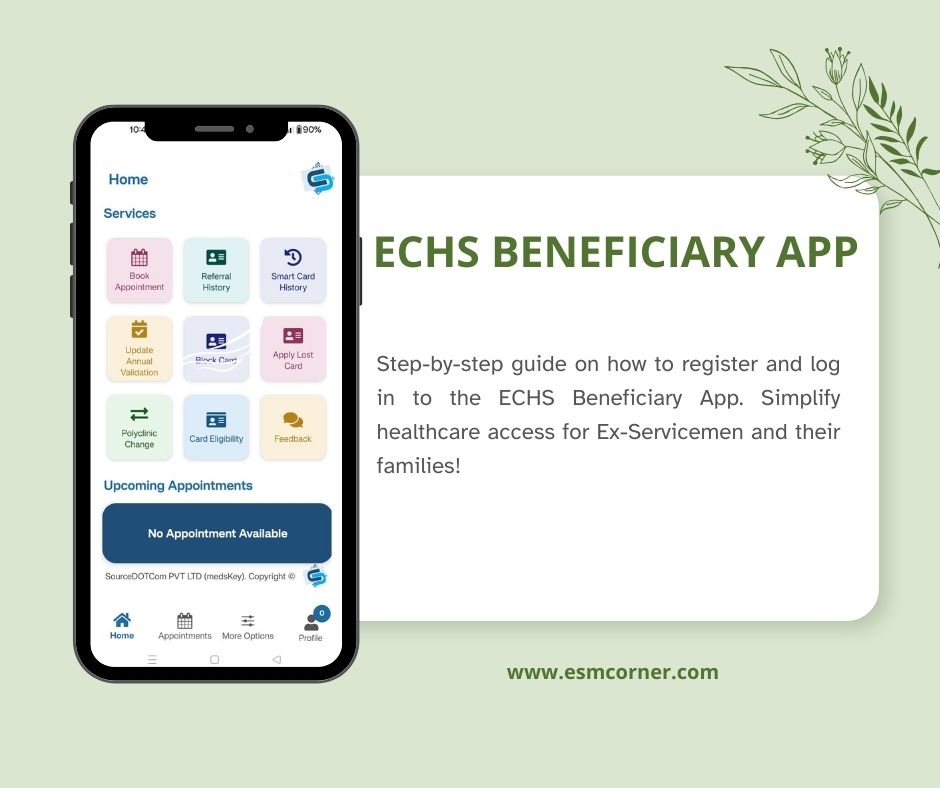
What Can You Do with the App?
The app has been created to save your time and effort. Here are some of the key features:
📅 Book Doctor’s Appointments without visiting the polyclinic.
🔄 Change Your Registered Polyclinic easily if you move to a new location.
💳 Track Smart Card Application (including 64KB cards).
📞 Get Contact Details of all regional centers.
📂 View Referral History and past medical records.
💳 Check Smart Card History for easy tracking.
📝 Complete Annual Verification quickly.
🚫 Block Your Card in case of loss or misuse.
🆘 Apply for a Lost Card directly from the app.
✅ Check Card Eligibility in seconds.
💬 Give Feedback and share your experience.
Common Problems During Registration
Many veterans face small issues during registration. Here are some simple solutions:
- OTP Not Received: Wait a few minutes. If still not received, check if your mobile number is updated in the ECHS records. If not, visit your polyclinic and get it updated.
- Card Not Registered: The app will not work unless your card is linked with a parent polyclinic. This is a must-do step.
- Wrong Card Number: Remember, enter only the last non-zero digits of your ECHS card. Do not include leading zeros or letters.
Why Registration is Important
Without registration, you cannot use the ECHS Beneficiary App. Once you register, you can access important services like booking doctor’s appointments, checking your smart card status, viewing referral history, and even applying for a lost card.
For elderly veterans, this saves a lot of time and unnecessary travel. For families, it means easier access to medical care.
Final Words
The ECHS Beneficiary Mobile App is a very useful tool, but everything starts with proper registration. The process is simple:
- Make sure your card is active.
- Download the app.
- Select Registration.
- Enter card number and create a PIN.
- Verify with OTP.
That’s it—you are ready to log in and use the services.
So, if you have not registered yet, do it today. It takes only a few minutes but makes your healthcare journey much smoother.
You have served the nation with pride—now let technology serve you!
EMERGENCY TREATMENT & CLAIMS PROCESS UNDER ECHS
👉 For more help, you can always visit www.echs.gov.in or contact your regional center.